

FAQ
FAQ(English)
Call numbers are handy for [Bib Search] searches. How do I search materials with the call numbers beginning with _____ and ending at _____?
There are two search methods: keyword search and literal search.
- The keyword search is a search of materials to find those containing the entered search value as a word (i.e., keyword).
The literal search is a search of materials to find those containing the entered search value as a simple character string (i.e., literal).
For the literal search, you can specify the following search methods.Search method Description Entry example Example of hit Exact match Retrieves the materials that have a complete match to the character string entered as a search condition. end end END End Prefix search Retrieves the materials that have a character string matching the prefix entered as a search condition. end* ending Left/right truncation search Retrieves the materials that have a character string matching the left/right truncation entered as a search condition. *end* weekends Suffix search Retrieves the materials that have a character string matching the suffix entered as a search condition. *end weekend - Searches for the following search items are normal keyword searches. To perform a literal search with the following keyword search items, add "#" to the beginning of the search values.
Keyword search item- Title
- Author
- Publisher
- Subject
- Keyword
- Searches for the following search items are normal literal searches.
Literal search item- Publication year
- Classification
- ISBN/ISSN
- Country code
- Language code
- NCID
- Registration No. (available only with prefix search)
- Material ID (available only with prefix search)
- Call No. (available only with prefix search)
By using the literal search, you can set the following search conditions for the details.Search method Entry example
(Item: Search value)Example of hit Searching for materials that have the keyword "Japan" in the title Title: Japan History of Japan
Tales of Old Japan
America and JapanSearching for materials whose title is "Japan" Title: #Japan Japan Searching for materials whose title ends with "Japan" Title: #*Japan America and Japan
A Rebirth of Japan
JapanSearching for materials published in the 1900s Publication year: 19* 1945
What kind of items can I use in searches from [Bib Search] on the advanced search screen?
You can perform searches with the following items on the advanced search screen.
- The 笆ウ symbol in the entry example represents one or more blank characters.
- [Local] means that the search item is enabled only for local searches. Value
Can I use only Roman characters to search Japanese language materials?
By placing a "$" symbol in front of Roman characters used for search values, you can convert the Roman characters into Katakana characters to perform a search.
- Writing in the official Kana romanization system and the Hepburn system is supported.
- Characters representing long vowel sounds are not supported. For example, to obtain the same search results as with "keyword," enter $kiwado instead of kiwado.
- The 笆ウ symbol in the entry example represents one or more blank characters.
| Entry example | Search results | Example of hit |
|---|---|---|
| $genji | The displayed search results are the same as those with "Genji" entered for the search. | Literature from the World of Genji People and Sentiments in the Tale of Genji The World of the Tale of Genji |
| $syamisen+$wahuu | The displayed search results are the same as those with "Shamisen + Wafuu" entered for the search. | Tamagiku and Her Samisen Traditional Japanese Style Japanese Style and Western Style |
| $nihon笆ウ$amerika | The displayed search results are the same as those with "Nihon笆ウAmerika" entered for the search. | Japan-America Related Keywords The Spirit of America, the Spirit of Japan The Japan-U.S. Alliance |
★What if I want to find out whether a neighborhood library, bookstore, or somewhere else has a book not available at the university?
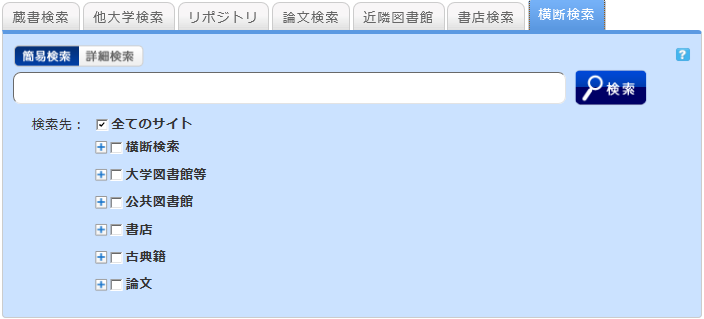
You can search the following from the [Cross Search] tab:
- Cross Search: CiNii Books, Google Books, and book collections of the National Diet Library and libraries outside Japan (WorldCat, British Library)
- University libraries: Neighborhood university libraries, etc.
- Public libraries: Book collections of neighborhood public libraries, etc.
- Bookstores: Book collections and bibliography data of Amazon, Junkudo Bookstore, and Books Kinokuniya
- Classic books: Classic books in university libraries and public libraries across Japan (comprehensive catalog of Japanese classic books)
How to use
- The search result list screen can display the search results of each specific search site or all sites.
- The first displayed search results belong to the search site where the search ended the earliest.
- If you want to find out the search results of another site, select it from the left menu.
- You can display a list of search results of each specific search site by clicking "Show All Sites" at the top left of the screen or clicking the site link in the results for each site on the left side of the screen.
- The number of acquired results is limited (10 to 100) depending on the site. If you want to find out all the search results of a specific site, perform the search directly from that site.
- The results of searches with [Cross Search] may differ from the direct search results of a specific search site. Use [Cross Search] mainly as a guide to determining the good sites to search for the materials you are looking for.
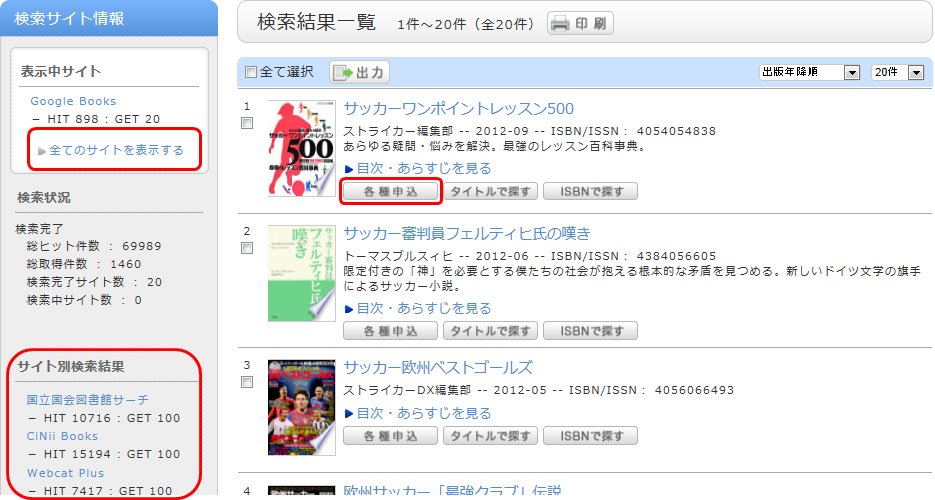
By selecting "Various applications" displayed for the bibliography on the search result list screen, you can make an ILL copy request (getting a copy from another library) and an ILL borrowing request (getting a book from another library).
I found a book with OPAC, but I don't know its location on the bookshelves.
An image of the call number label appears when the cursor is placed over this link.
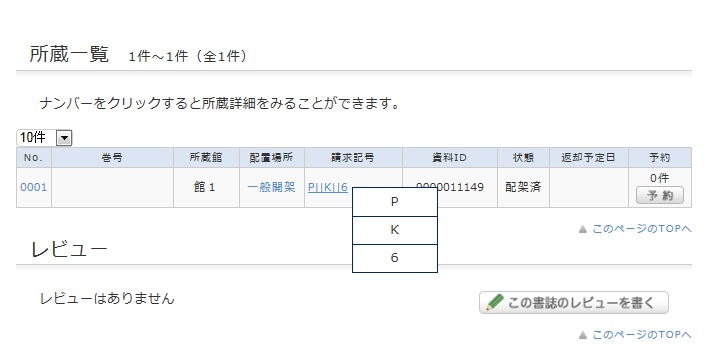
This image corresponds to the label on the book.
The library bookshelves are arranged in order of call number.
From the signs on premises and this number, find the bookshelf.
What should I do if the materials found with OPAC are already checked out?
1. Click the [Reserve] button in "Holdings List" on the bibliography details screen.
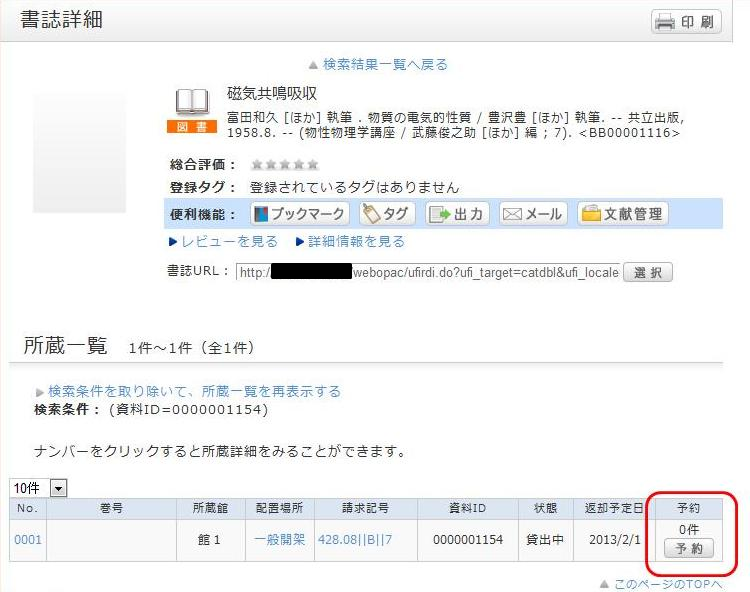
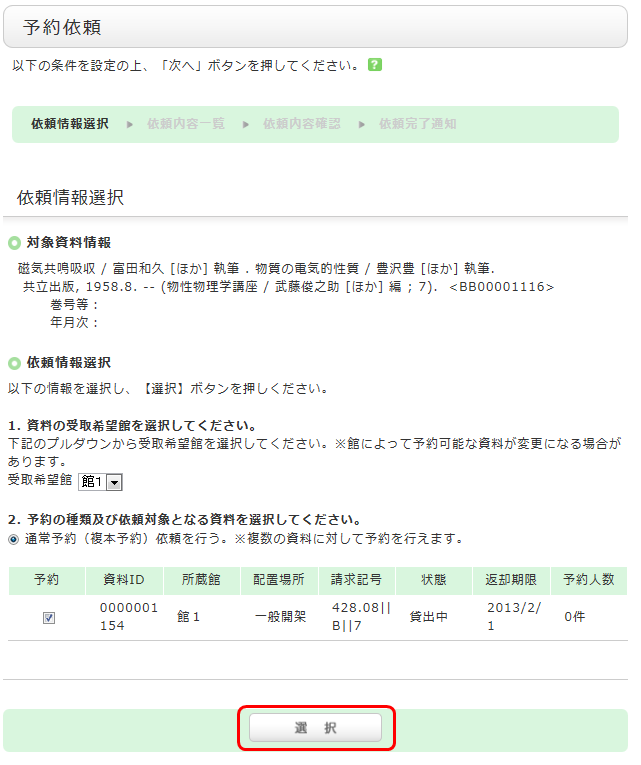
2. Select the request conditions, and click [Select] on the Select Request Conditions screen.
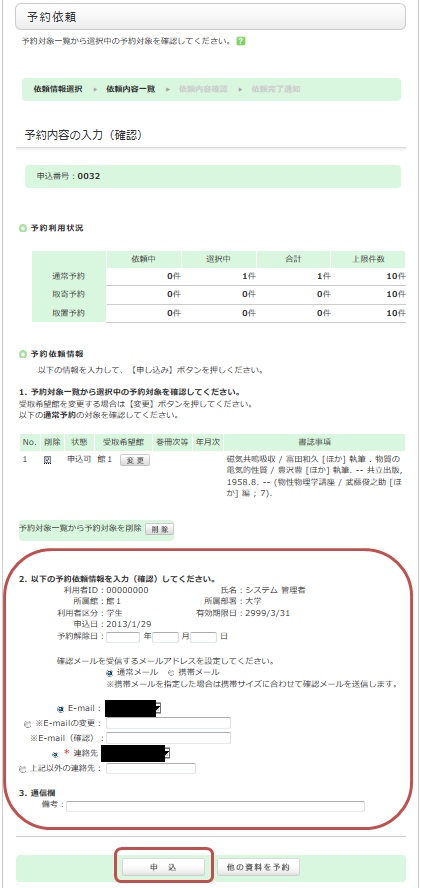
3. Confirm the material information and reservation client information on the request information entry screen. Then, enter (confirm) reservation details. Lastly, click the [Submit] button.
- Reservation cancel date: The reservation is canceled when the entered date has passed.
- E-mail: From your registered e-mail addresses (PC/mobile phone), select a contact e-mail address. The library uses it to inform you when your reserved materials are available for check-out. To be contacted at a different e-mail address, fill in the "Change E-mail" field.
- Telephone number (Required input field): Type in your contact telephone number. The library uses it to inform you when your reserved materials are available for check-out. To be contacted only by e-mail and not by telephone, type in words to this effect in the "Remarks" field of "Notes."
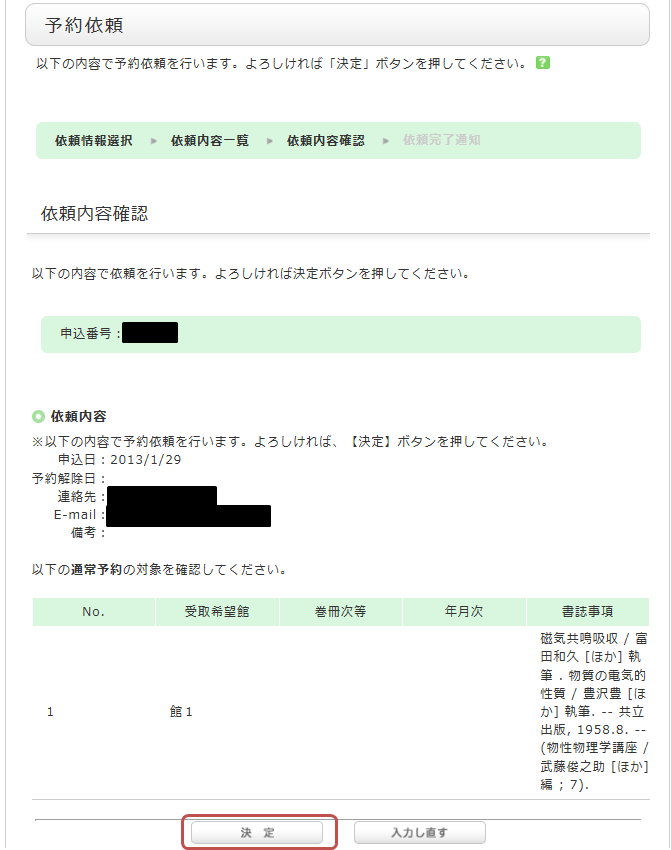
4. Confirm your reservation request details on the request confirmation screen, and then click the [Confirm] button.
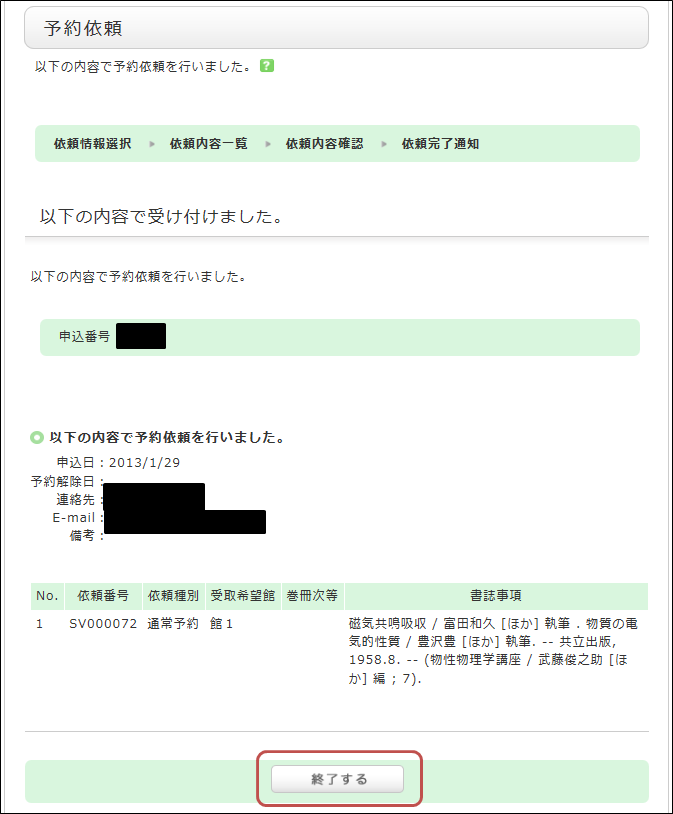
5. The reservation is complete when the request completion notification screen appears.
* Reserved materials are on hold for a period of time.
If you do not borrow the materials within this period, the reservation is canceled. So when the library contacts you about the arrival of your reserved materials, visit the library as soon as possible and complete the procedure for borrowing.
What if I want to use materials from a neighborhood public library?
The borrowing rules follow the rules of that neighborhood library.
What should I do if I want to use materials from a different university library?
Articles cannot be searched. If you want to search articles, perform the search from the [Article Search] tab.
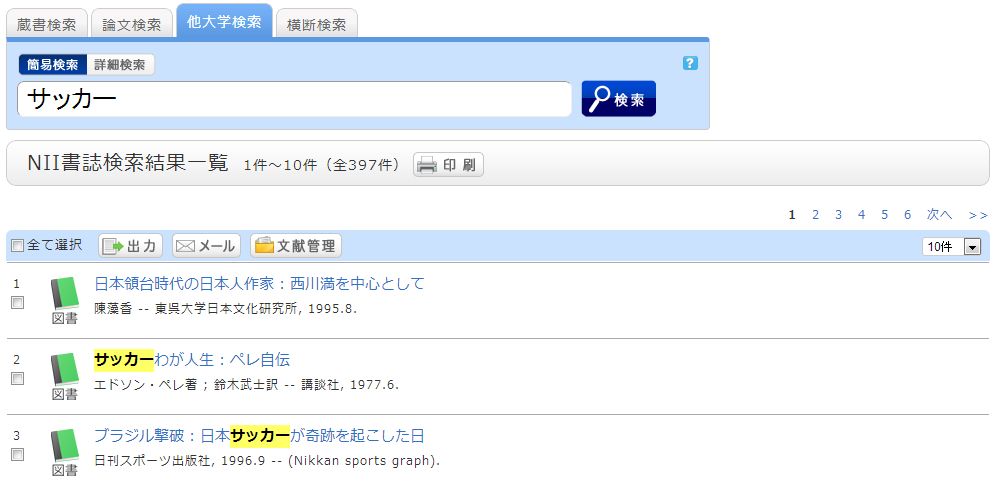
A search with an entered keyword will display the search result list screen.
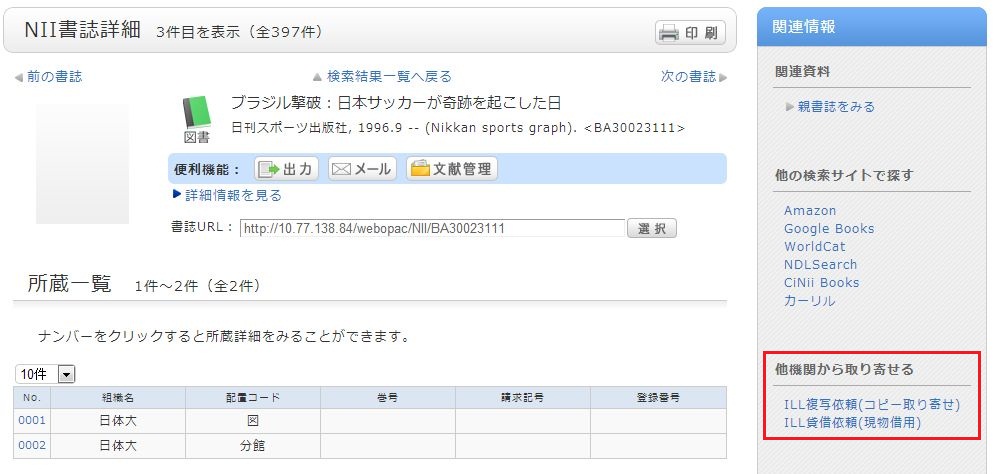
When a material is selected from this screen, the NII bibliography details screen appears.
Click one of the following options of the "Get it from another organization" item displayed in the right menu on the screen.
- ILL Copy Request (getting a copy from another library)
- ILL Borrowing Request (borrowing a physical book)
ILL Copy Request is a service for getting copies of parts of articles and books from other university libraries, etc.
ILL Borrowing Request is a service for getting books from other university libraries, etc.
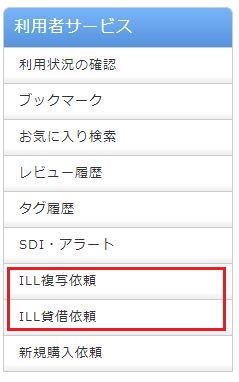
There is an article that I want to obtain but haven't found it. How can I obtain it?
from ILL Copy Request on the left side of the screen.
If you know that the article is in a published serial at another university,
select the [Other Univ.] tab from the search bar. Select ILL Copy Request from the detailed pages (NII bibliography details screen) of that serial.
If you found the article elsewhere, such as in another system, see the respective system help to make an ILL copy request.
How do I fill in the copy request screen?
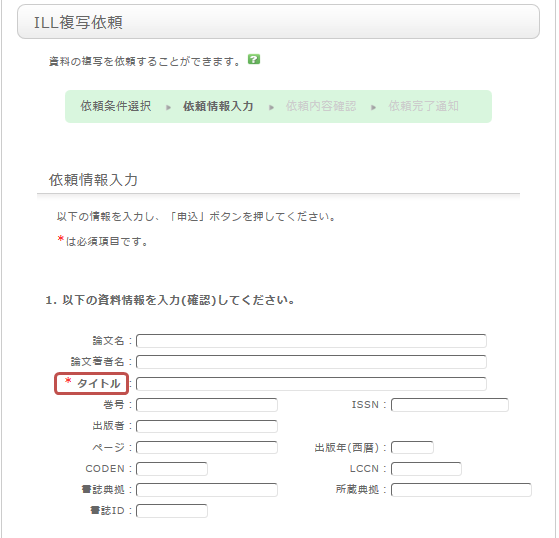
To be certain about obtaining those materials, enter as much detailed information as you can.
In particular, if you found them in a database or other such system, write the name of this system in the bibliography authority.
* The screen is for requesting a serial. Note that a different screen is used for books.
2. Next, enter your own information in the client information fields.
Note that if your contact information has an error, the materials may not be promptly handed to you.
So be sure to enter the correct contact information for getting in touch with you.
3. Next, enter information about your request, information about the payment method, and remarks.
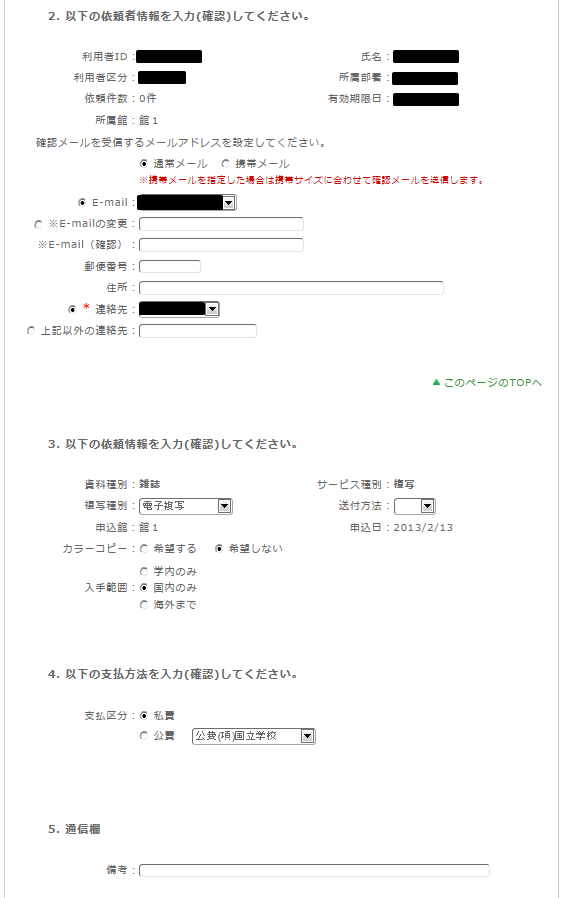
For the information about your request, write the following information: copying method, delivery method, and receiving library.
Note that copy requests are handled for a fee, so also select the range of your request.
In particular, note that copy requests from outside Japan may cost more and may take more time than those from inside Japan. Check your request carefully.
For the payment method, you can select private expense or public expense.
To apply for payment at public expense, you must have a public expense budget.
You may have information other than the above to report separately.
An example is a separate request on the printing method or receiving the copy. Enter such information in the Remarks field.
Once you have entered the above details, click the [Submit] button, and confirm the details on the confirmation screen.
When there are no problems, click the [OK] button to complete the procedure.