FAQ
FAQ(English)
I want to be notified when the latest issue of the serial _____ arrives. Is this possible?
カテゴリ:
5.1. Personal Services
Apply for the alert service from the bibliography details screen.
This service covers serials being received on an ongoing basis.
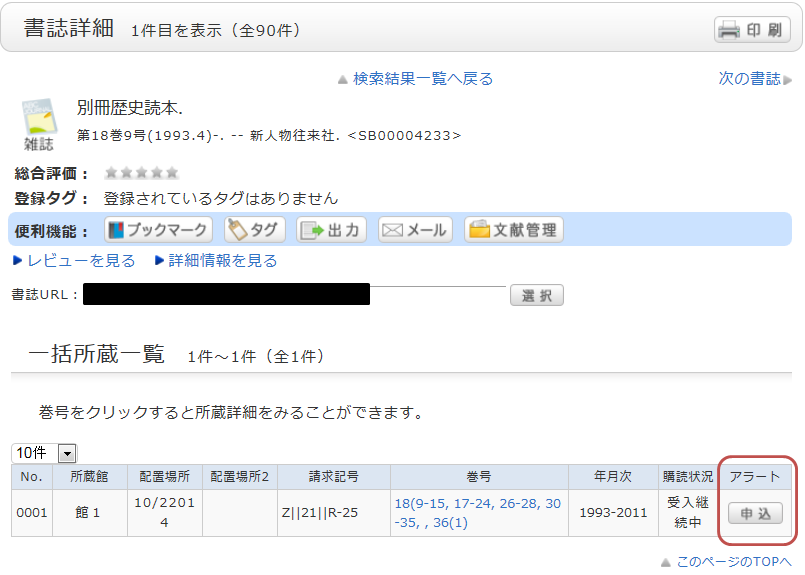
Once you complete your application, the registered conditions appear on the alert list screen.
You can stop the sending of notifications and change the sending frequency on the alert list screen.
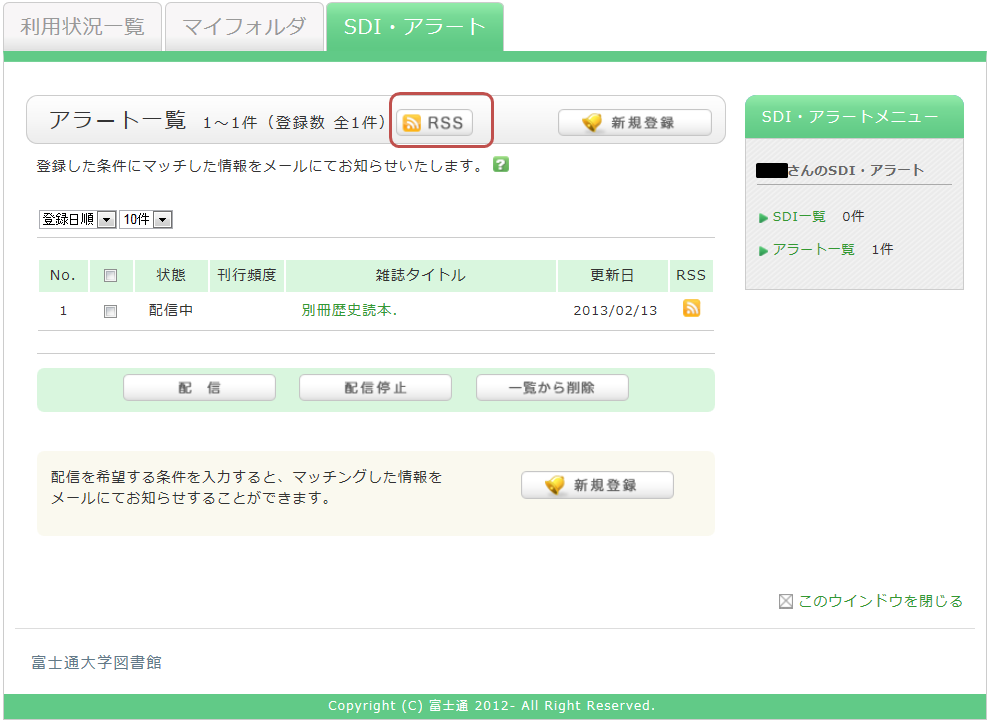
Also, you can register an RSS reader from the [RSS] button.
Once you have registered the RSS reader, you can check for any new arrivals of the relevant materials, even without checking OPAC.
I want to be notified of any books related to _____ received by the library. Is this possible?
カテゴリ:
5.1. Personal Services
The function of this service is to memorize search conditions and send notification by e-mail, RSS, etc.
when the library receives any matching material.
After a search with OPAC Bib Search, you can register the search conditions by clicking "Register Search Conditions."
You can also register search conditions from SDI Alert in OPAC.
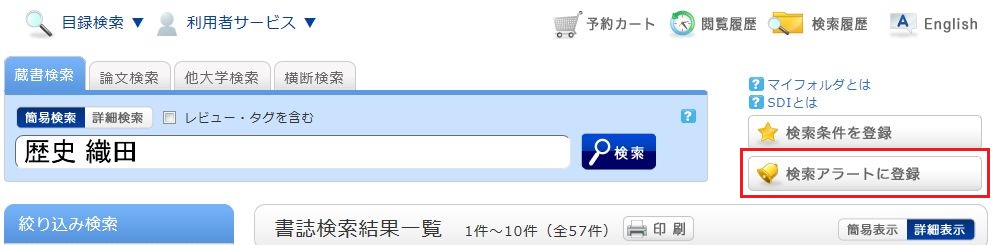
The process of registration displays the SDI list screen.
From there, you can check the list being sent and change the sending frequency.
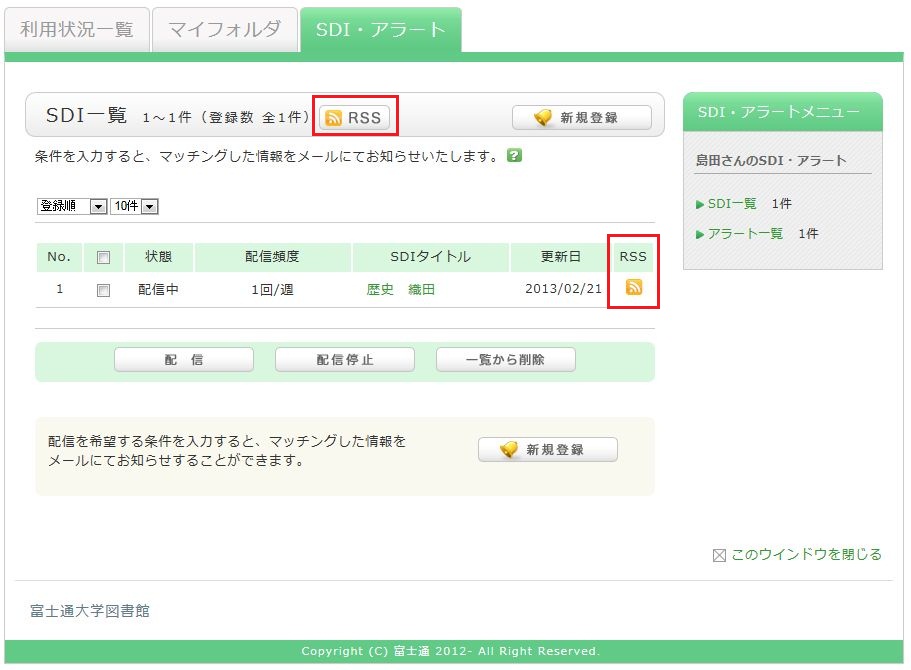
You can register an RSS reader from the [RSS] button.
Once you have registered the RSS reader, you can check for any new arrivals of the relevant materials,
even without checking OPAC.
I want to write a review about the material, but I couldn't find it. Is May I write one?
カテゴリ:
5.1. Personal Services
By all means, post your reviews.
You can post a review by selecting "Review this book"
from the bibliography details screen.
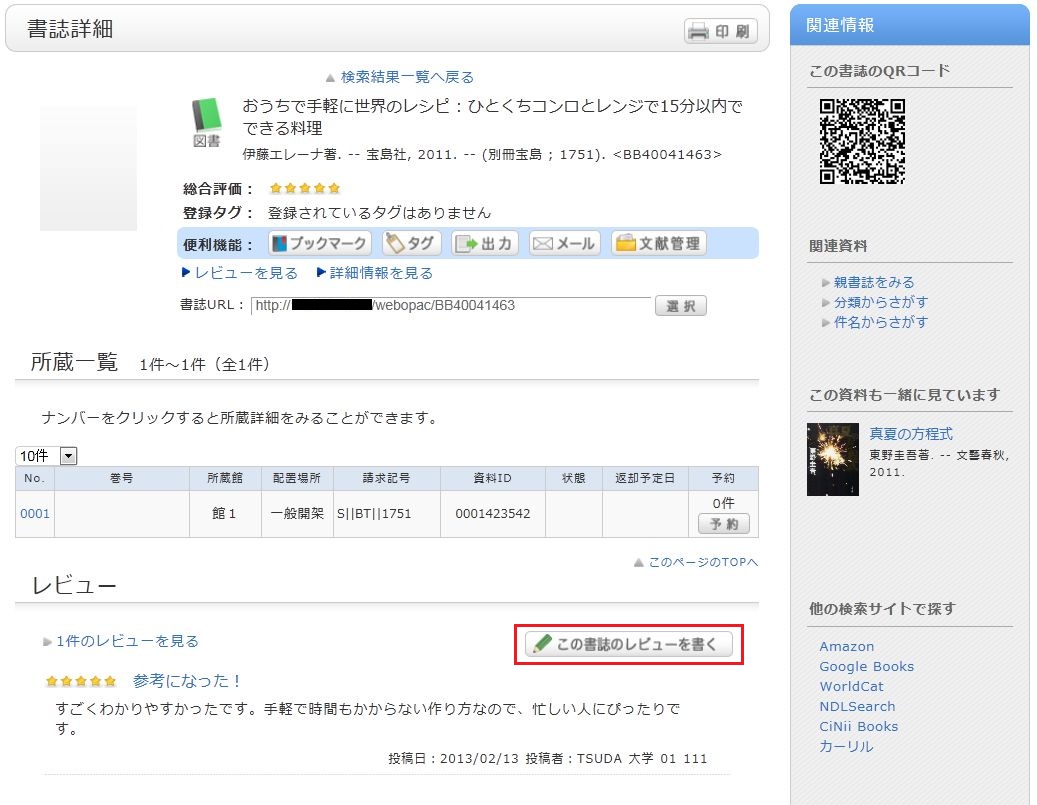
However, note that the library checks each review
before it appears on the screen in order to determine its appropriateness.
Therefore, it may take some time for your review to appear on the screen.
The library may keep a review from appearing on the screen.
Your understanding is appreciated in such cases.
Note that your personal information is kept confidential.
Information on the people posting reviews appears as nicknames and the like.
How do I register a review?
カテゴリ:
5.1. Personal Services
Review entry
- Confirm the bibliography of your written review, and decide the number of ★(1 to 5) for an evaluation. Then, enter the review title and text, and click [Post].
You cannot use HTML tags and machine-dependent characters. - Confirm what you are registering. When there is no problem, click the [Submit] button. To start over with the entry, click [Input Again].
- When your review is published, the contributor's nickname, date, section affiliation, library affiliation, and user type are posted in addition to the review title and text.
- If you want to set or change your nickname, select [OPAC] -> [Your Library Record] -> [Personal]. Confirm the name displayed in the "Handle" column.
To correct the name, click [Change Personal], and enter your new handle name.
レビューの評価
レビューに対してコメントをしたり、参考票を投じたり、不適切なレビューとして通報することができます。
レビュー詳細画面から、それぞれ
- このレビューは参考になりましたか? ? はい ? いいえ
- 不適切なレビューとして報告する
- このレビューにコメントを書く

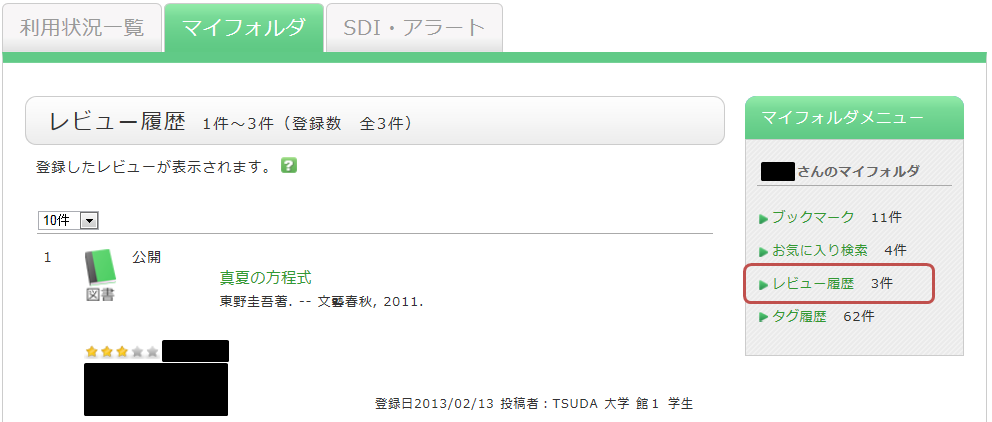
How do I check my written reviews?
カテゴリ:
5.1. Personal Services
How do I register a tag?
カテゴリ:
5.1. Personal Services
 .
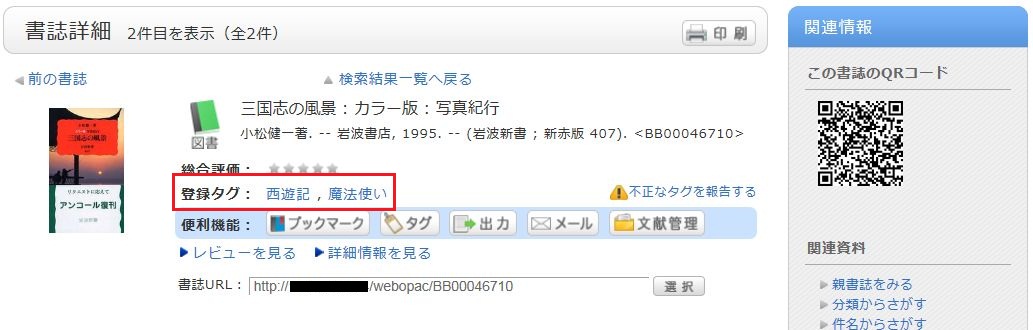
.Method 2) In the bibliography details screen, click
.However, tags such as those used in a list of the specified books in a syllabus (e.g., all university, 2012 first term) cannot be registered.
Referring to other tags
By attaching the same tags to multiple bibliographies, you can batch search them.
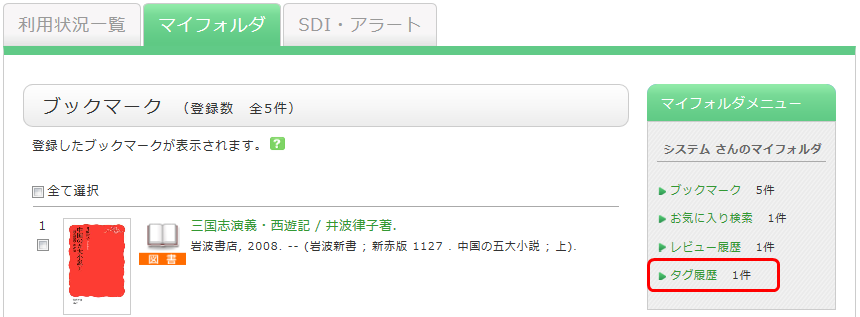
Checking the tag history
You can check the tag history from [OPAC] -> [My Folder] -> [Tag History], which is on the right menu.
What if a tag is inappropriate?
If you think that a tag is inappropriate or does not match the material, please contact us.
Click [Report as inappropriate] behind "Register tag" on the bibliography details screen to register your report.
How do I check the tags that I attached?
カテゴリ:
5.1. Personal Services
I have books used in lectures and laboratories. I want to share them with friends. Is there a good way to do this?
カテゴリ:
5.1. Personal Services
For example, suppose you add a tag such as the following: "This was helpful in _____ lecture." or "A must read for _____ laboratory." Then, anyone can bring up the same list of materials when searching tags.
You can register tags from both the list screen and details screen.