FAQ
FAQ(English)
The pop-up blocker appears when I reserve or copy materials or apply for an inter-library loan.
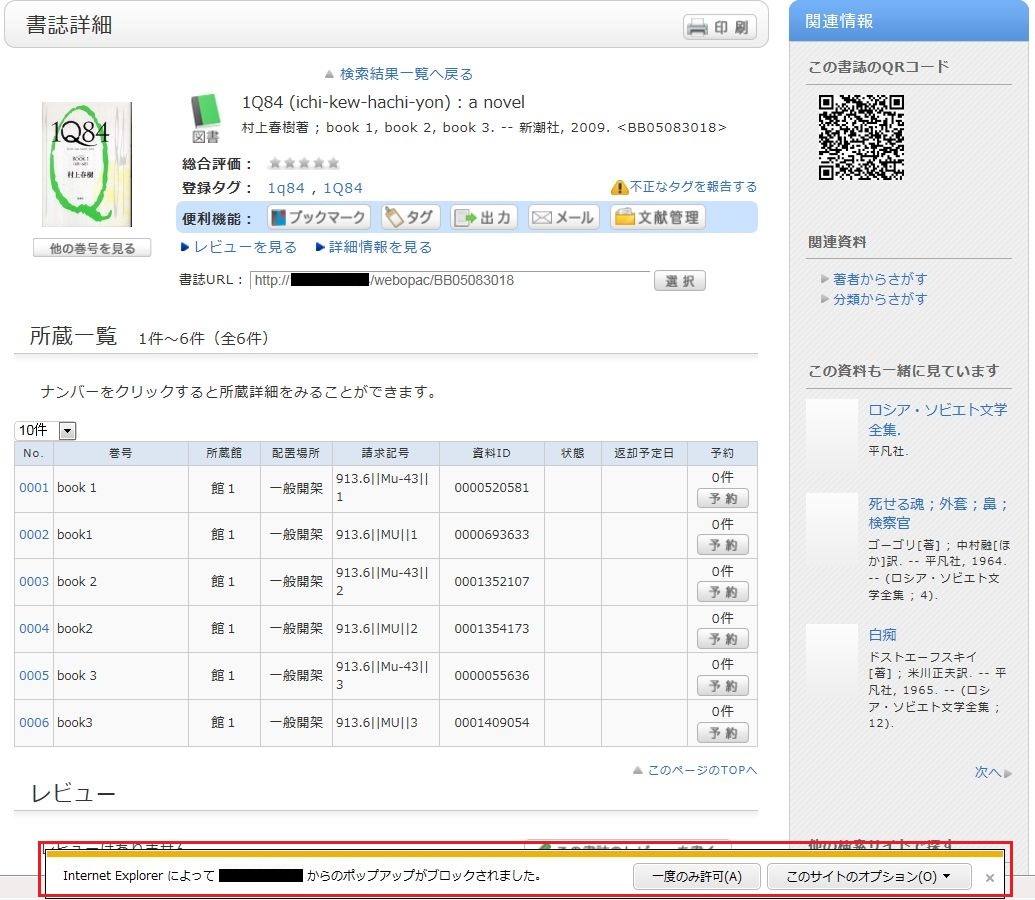
* The screenshot is from Internet Explorer 9. The pop-up blocker appears in different locations depending on your browser and version. For details, see the help of the respective browser.
The pop-up screen is used for all applications from OPAC, such as for a reservation, ILL, or new arrival alert. Therefore, enable pop-ups by using the following method. (The descriptions apply to Internet Explorer 9.)
- Temporarily allowing the pop-up blocker
Click [Allow once] on the pop-up blocker notification bar.
(Depending on the browser version, select "Temporarily Allow Pop-ups.")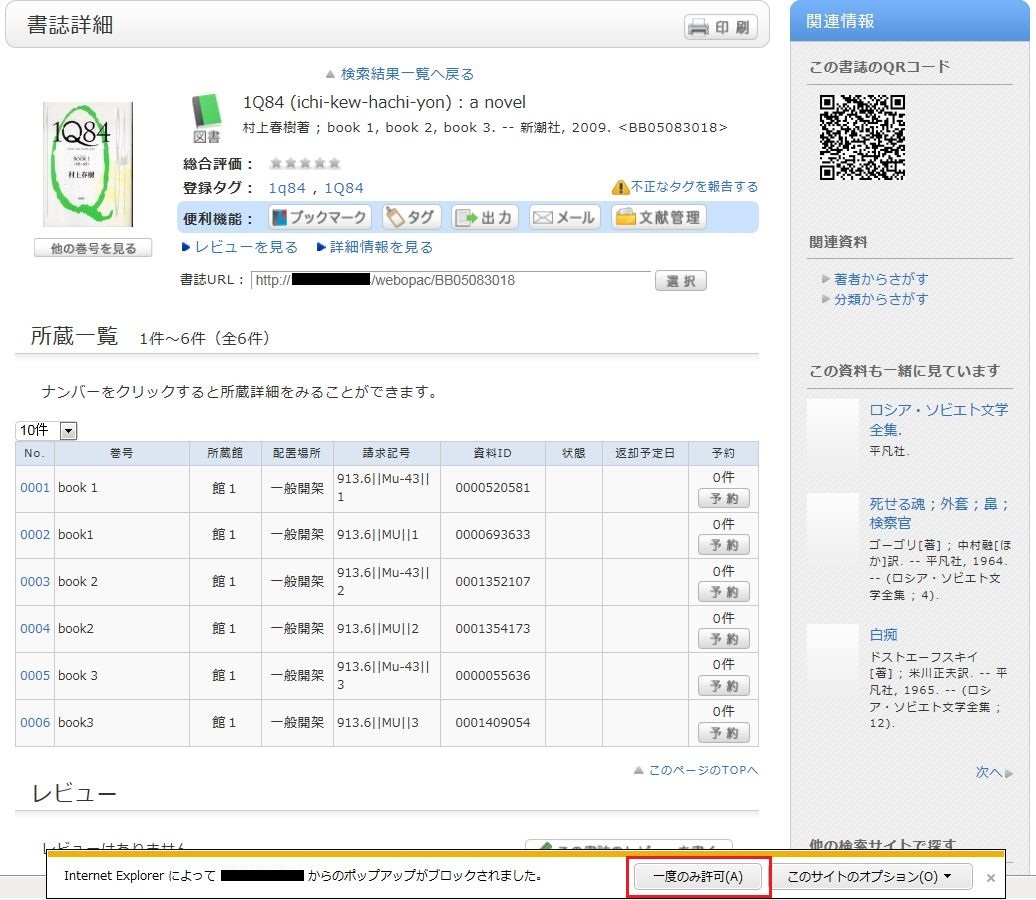
* However, with this method, if the browser is closed once, the pop-up blocker is enabled when the browser is started again. Consequently, the same work will need to be repeated to apply for a reservation or ILL in OPAC.
- Always allowing the pop-up blocker
Click "Always allow" from [Options for this site] on the pop-up blocker notification bar.
(Depending on the browser version, click the notification bar, and select "Always Allow Pop-ups from This Site.")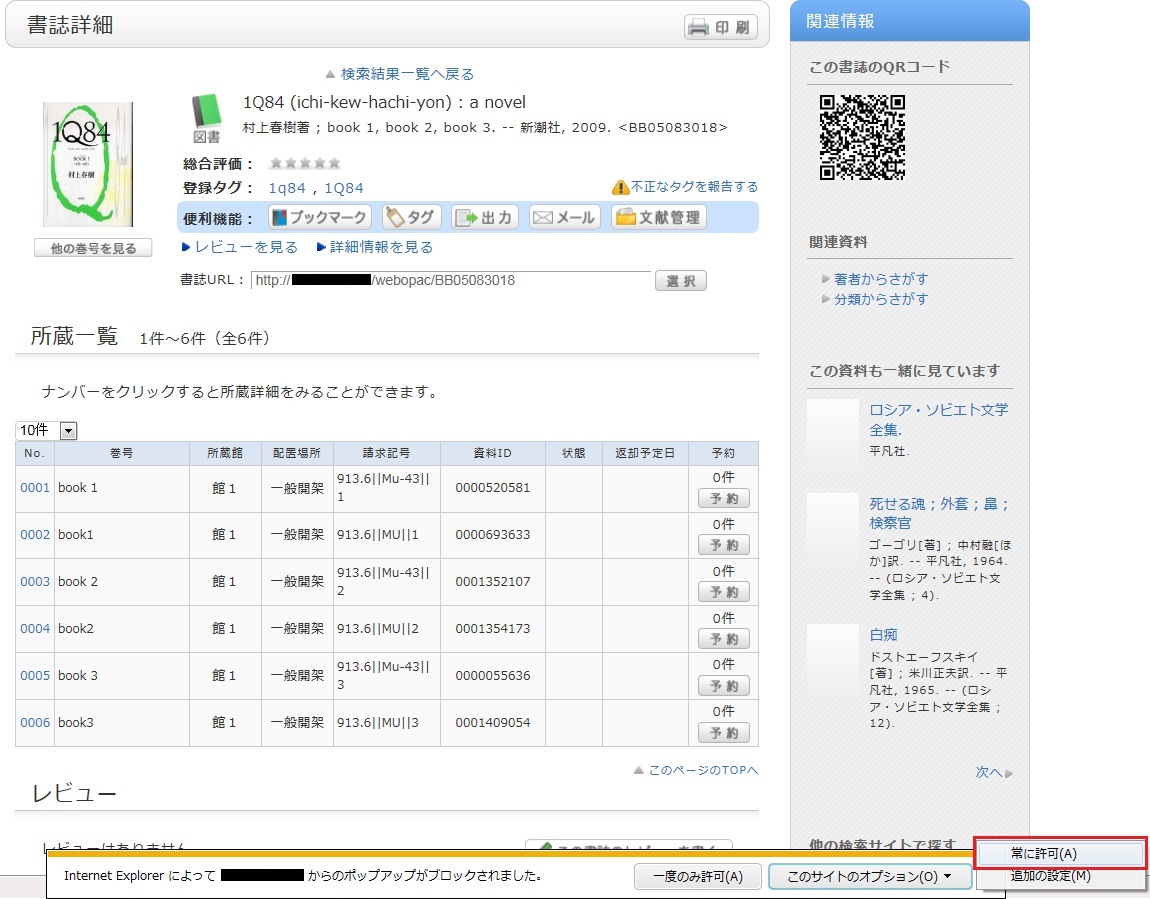
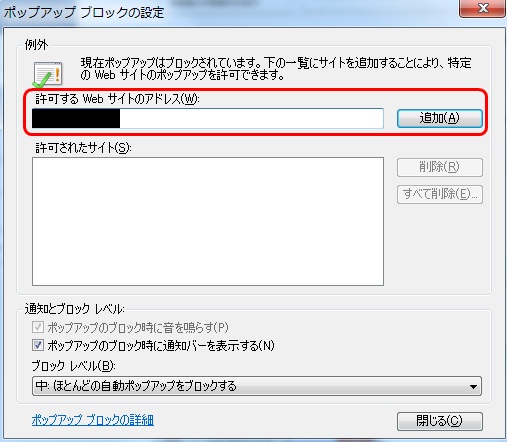
* Safari users are requested to go to Security in the browser settings menu to confirm that no check mark is entered in the "Block Pop-up Windows" check box.
* If you are a Google Chrome user, click here.
After enabling pop-ups as described above, repeat the procedure for your application from the beginning.
What should I do if I know only part of the title of the material?
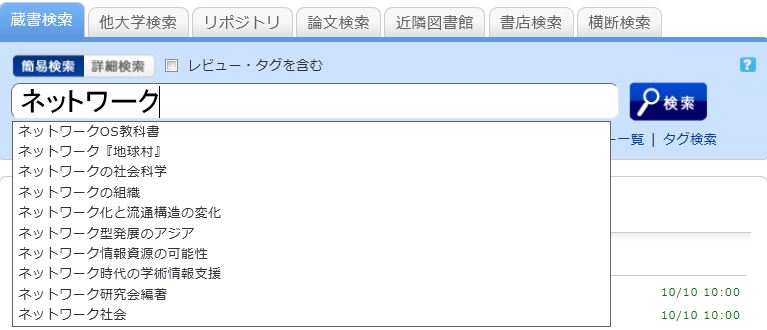
Select one from the displayed potential matches and press the [Search] button to start the search.
How do I search with an ISBN or ISSN (number)?
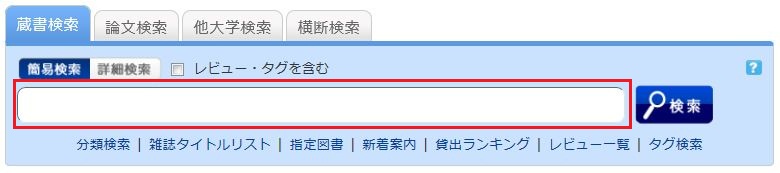
You can also perform a search from the advanced search screen by clicking the [Advanced Search] button on the [Bib Search] tab.
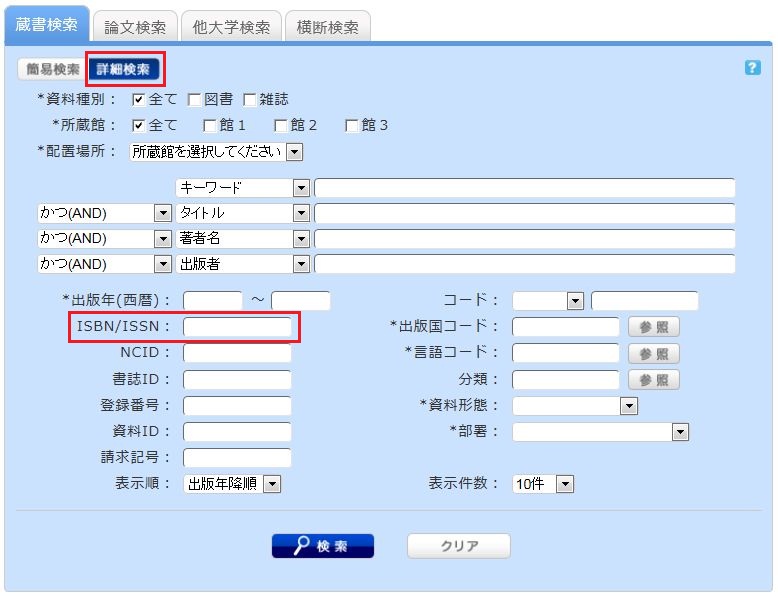
You can perform the search by filling in the ISBN/ISSN field.
ISBN (International Standard Book Number): This number identifies a book.
ISSN (International Standard Serial Number): This number identifies a serial.
What characters can I use with the [Bib Search] tab?
On the Japanese-language pages, you can use Kanji, Hiragana, Katakana, and alphanumeric characters. For alphanumeric characters, you can enter uppercase and lowercase characters. Single-byte and double-byte characters can both be entered.
Searches of Arabic script, Devanagari script, African languages, and Southeast Asian languages
Searches can use the original spelling (with characters as they appear in materials). Searches can also use keywords converted into Roman alphabet letters using the ALA-LC Romanization Tables of the U.S. Library of Congress. Some materials are registered in Roman alphabet letters only. An index is created for them. So if the search has no hits with the original spelling, convert the keywords into Roman alphabet letters, and perform the search again.
How do I search for materials when I don't remember the title?
If the search has an excessive number of hits, you can narrow it down with the [Classification] item from the [Refine Your Search] menu displayed on the left side of the search result list screen. In addition to using the classification item, you can also narrow down your search by material type, holding library, author, publication year, classification, subject, publisher, language, etc.
If the keyword search is unsuccessful, try using Search by Classification in the lower part of the [Bib Search] tab.
For example, suppose you are searching for statistics-related materials. From Search by Classification, you can narrow down the search to the materials in the following fields by selecting and performing the search with
"4: Natural science -> 41: Mathematics -> 417: Probability theory, Mathematical statistics."
What should I do if I want to use a combination of multiple search conditions (such as one including x or y)?
You can perform the following three searches by entering multiple conditions in a single search field or filling in multiple search fields (logical operation).
Entering multiple search values in one search field (enabled on the basic search screen and advanced search screen)
- Logical AND search: Search for materials that simultaneously satisfy two or more search values
- Entry method: Connect all search values with " " (blank).
- Example: Search for materials containing both "Japan" and "America"
- "Japan America"
- Logical OR search: Search for materials that satisfy any one of two or more search values
- Entry method: Connect all search values with "+" (plus sign).
- Example: Search for materials containing either "Japan" or "America"
- "Japan+America"
- Logical NOT search: Search for materials that satisfy certain conditions and do not satisfy other corresponding conditions
- Entry method: Connect all search values with "^" (caret).
- Example: Search for materials containing "Japan" but not "America"
- "Japan^America"
Entering multiple search values in multiple search fields (enabled on the advanced search screen)
- Logical AND search: Search for materials that simultaneously satisfy two or more search values
- Entry method: Enter search values in multiple fields, and select "AND" from the pull-down menu between the fields.
- Example: Search for materials containing "Japan" in the title and "Tokyo" in the author's name
- Title: Japan
Pull-down menu: AND - Author: Tokyo
- Logical NOT search: Search for materials that satisfy certain items and do not satisfy other items
- Entry method: Enter search values in multiple fields, and select "NOT" from the pull-down menu between the fields.
- Example: Search for materials that contain "Japan" in the title and do not contain "Tokyo" in the author's name
- Title: Japan
Pull-down menu: NOT - Author: Tokyo
Primary search items and secondary search items
The following search items are called primary search items. You can perform searches independently with their search values alone.
- Keyword
- Title
- Author
- Publisher
- Subject
- Review
- Tag
- Classification
- ISBN/ISSN
- NCID
- Bibliography ID
- Registration No.
- Material ID
- Call No.
The following search items are called secondary search items. You cannot perform a search with a secondary search item unless it is combined with at least one primary search item. The search screen displays * in front of the item names.
- Material type
- Holding library
- Publication year
- Country code
- Language code
- Location
- Material format
- Section
Call numbers are handy for [Bib Search] searches. How do I search materials with the call numbers beginning with _____ and ending at _____?
There are two search methods: keyword search and literal search.
- The keyword search is a search of materials to find those containing the entered search value as a word (i.e., keyword).
The literal search is a search of materials to find those containing the entered search value as a simple character string (i.e., literal).
For the literal search, you can specify the following search methods.Search method Description Entry example Example of hit Exact match Retrieves the materials that have a complete match to the character string entered as a search condition. end end END End Prefix search Retrieves the materials that have a character string matching the prefix entered as a search condition. end* ending Left/right truncation search Retrieves the materials that have a character string matching the left/right truncation entered as a search condition. *end* weekends Suffix search Retrieves the materials that have a character string matching the suffix entered as a search condition. *end weekend - Searches for the following search items are normal keyword searches. To perform a literal search with the following keyword search items, add "#" to the beginning of the search values.
Keyword search item- Title
- Author
- Publisher
- Subject
- Keyword
- Searches for the following search items are normal literal searches.
Literal search item- Publication year
- Classification
- ISBN/ISSN
- Country code
- Language code
- NCID
- Registration No. (available only with prefix search)
- Material ID (available only with prefix search)
- Call No. (available only with prefix search)
By using the literal search, you can set the following search conditions for the details.Search method Entry example
(Item: Search value)Example of hit Searching for materials that have the keyword "Japan" in the title Title: Japan History of Japan
Tales of Old Japan
America and JapanSearching for materials whose title is "Japan" Title: #Japan Japan Searching for materials whose title ends with "Japan" Title: #*Japan America and Japan
A Rebirth of Japan
JapanSearching for materials published in the 1900s Publication year: 19* 1945
What kind of items can I use in searches from [Bib Search] on the advanced search screen?
You can perform searches with the following items on the advanced search screen.
- The 笆ウ symbol in the entry example represents one or more blank characters.
- [Local] means that the search item is enabled only for local searches. Value
Can I use only Roman characters to search Japanese language materials?
By placing a "$" symbol in front of Roman characters used for search values, you can convert the Roman characters into Katakana characters to perform a search.
- Writing in the official Kana romanization system and the Hepburn system is supported.
- Characters representing long vowel sounds are not supported. For example, to obtain the same search results as with "keyword," enter $kiwado instead of kiwado.
- The 笆ウ symbol in the entry example represents one or more blank characters.
| Entry example | Search results | Example of hit |
|---|---|---|
| $genji | The displayed search results are the same as those with "Genji" entered for the search. | Literature from the World of Genji People and Sentiments in the Tale of Genji The World of the Tale of Genji |
| $syamisen+$wahuu | The displayed search results are the same as those with "Shamisen + Wafuu" entered for the search. | Tamagiku and Her Samisen Traditional Japanese Style Japanese Style and Western Style |
| $nihon笆ウ$amerika | The displayed search results are the same as those with "Nihon笆ウAmerika" entered for the search. | Japan-America Related Keywords The Spirit of America, the Spirit of Japan The Japan-U.S. Alliance |
★Can I use materials whose holdings location for the OPAC search results is "laboratory"?
What do I do when I don't find the materials I'm looking for on the [Bib Search] tab? (Part 1)
- check the Kanji and spelling of keywords to see whether they are correct.
- Are searching by "Article title" or "Article author"? Try searching by serial title.
When you want to search by "Article title" or "Article author," try searching from the [Article Search] tab. In such cases, you may also be able to read the text of electronic journals from a personal computer. - If you still do not find the materials you are looking for, try searching from the [Other Univ.] tab or [Cross Search] tab.
If you can confirm that the library of another institution possesses the materials you are looking for, you may be able to go directly to that library to use the materials there or get them from the library.
★What do I do when I don't find the materials I'm looking for on the [Bib Search] tab? (Part 2)
1. Search the holdings of other university libraries and the National Diet Library, and apply to get the book or a copy (ILL copy request and ILL borrowing request) from the relevant library.
→ Perform the search from the [Other Univ.] tab or the [Cross Search] tab.
2. Search the holdings of your neighborhood public library and university libraries, and visit the relevant library directly.
→ Perform the search from the [Cross Search] tab by selecting a neighborhood public library, university library, etc.
3. Perform a search from a bookstore, etc., and consider purchasing the materials there.
→ Select a bookstore and perform the search from the [Cross Search] tab.
4. Search the holdings of libraries outside Japan, and get the materials from the relevant library.
* Getting a book or inter-library loan from a library or other such other organization outside Japan takes a significantly long time. Due to a variety of reasons, it may also be impossible to get materials from libraries outside Japan. For details, consult the library staff.
What is "Reserve Book" in the catalog search menu under the keyword input box on the [Bib Search] tab?
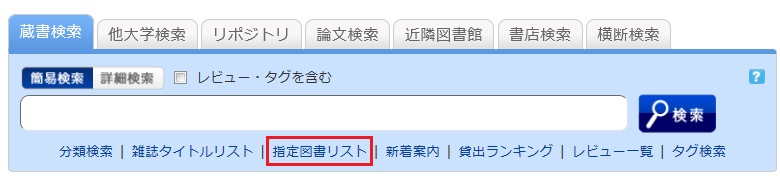
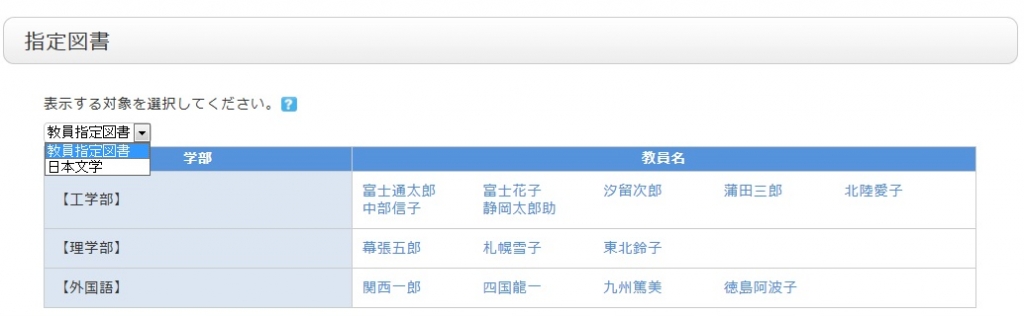
Reserve Book enables you to view a list of syllabuses, instructor-specified textbooks, reference books, etc.
You can change the display target from the pull-down menu.
What are the reviews displayed on the review list screen?
By clicking the RSS icon
 , you can check newly registered reviews in the RSS reader you normally use.
 You can register a review from the bibliography details screen.
What are the tags displayed on the tag search screen?
You can search for a tag on the tag search screen to display a list of materials that have this tag.
Suppose you add a tag such as the following: "_____ seminar reference book" or "A must read for _____ class." Then, after a tag search, anyone can bring up the same list of materials.
For example, try clicking a tag in "New tags," "Recent tags," or "Popular tags." Then, materials that have these tags are displayed.
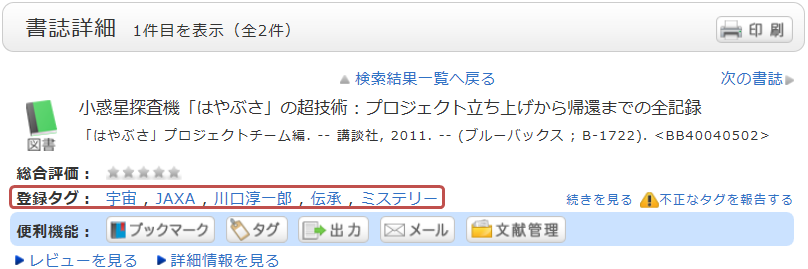
You can register tags on the search result list screen and the bibliography details screen.
What should I do if I want to search reviews and tags?
- See "
 New Tags" and "
 New Reviews" on the top page.
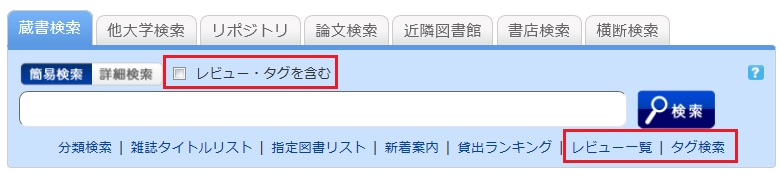
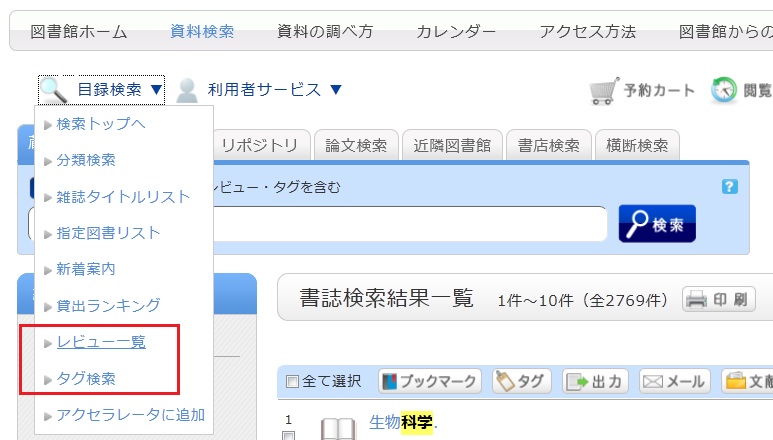
 - Select "Review List" or "Search Tags" under the search bar on the [Bib Search] tab.
- In [Basic Search] on the [Bib Search] tab, enter a check mark for "Contains review and tag."
- In [Advanced Search] on the [Bib Search] tab, select "Review" or "Tag" from the pull-down menu and search the materials.
(In contrast to the basic search, you can perform a search with multiple conditions.)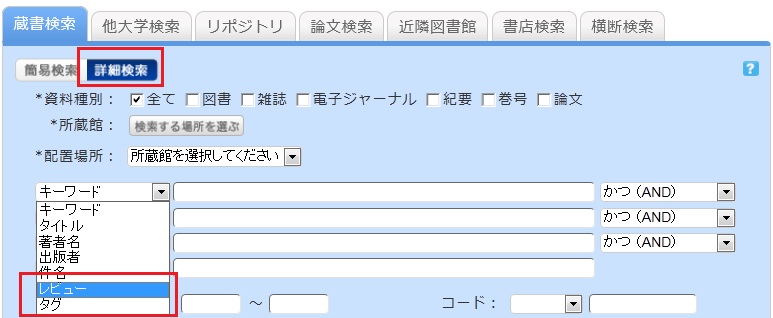
- Select "Review List" or "Search Tags" from the catalog search menu.
How do I return to the original search result list after a refined search from the left menu on the search result list display screen?
In the example, the material type is limited to "books."

Cancel the search conditions for this holding library. Then, to return to the original search result list, click the red x button in the blank area under "Selecting conditions."
Even if you have performed multiple refined searches, you can cancel any narrow-down search condition by using the above method, regardless of the order of the searches.
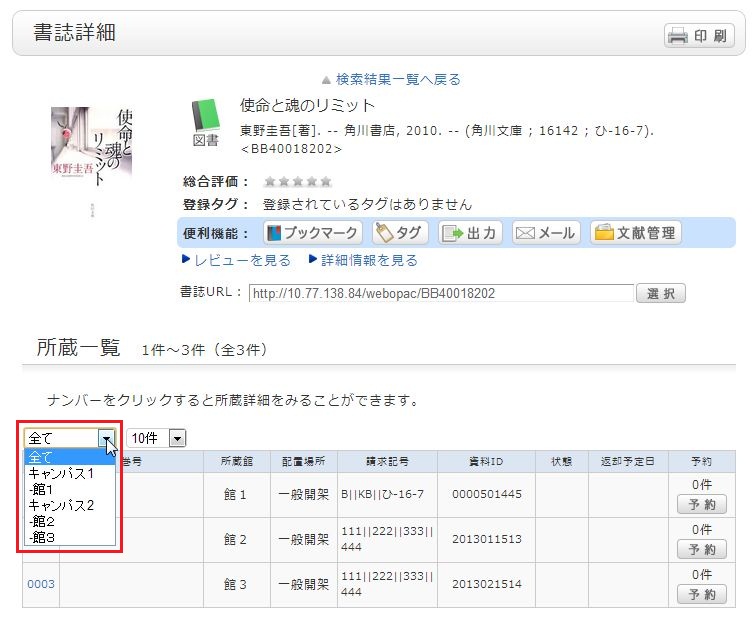
Suppose that you perform a refined search of a holding library, select a bibliography on the bibliography search result list screen, and then move to the bibliography details screen. Even after that, you can still cancel the refined search of the holding library and perform a refined search of another library.
How do I import book information from OPAC to EndNote Web?
- Method of directly importing book information from OPAC to EndNote Web
(A plugin must be downloaded before book information can be imported.)- Log in to EndNote Web.
* Users who do not have an account with EndNote are requested to register as users from "Account Registration."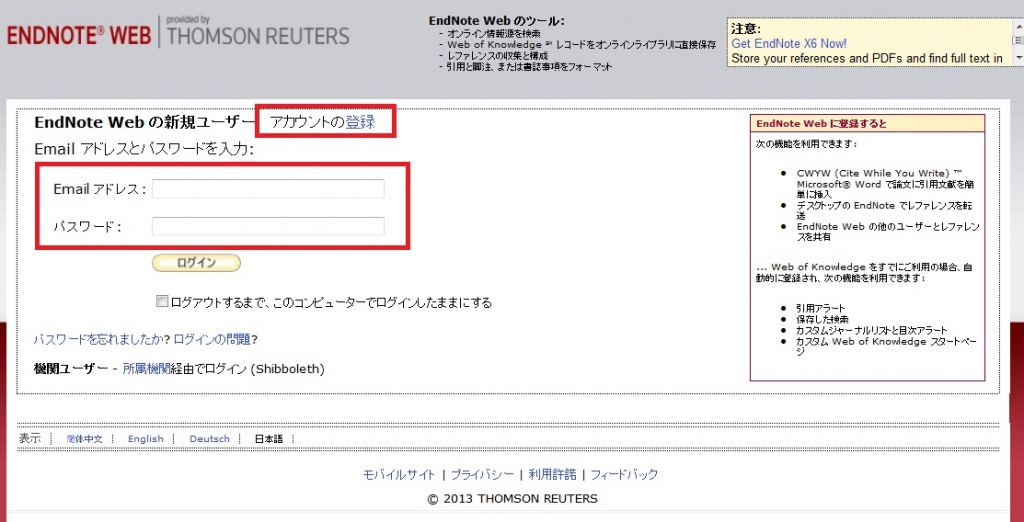
- Click [Options] -> [Download Plugin].
- If you are using Internet Explorer or Safari as the browser, select "Download Windows Version" or "Download Macintosh Version" from CWYW (Cite While You Write), according to the operating system used on your computer, to download the plugin.
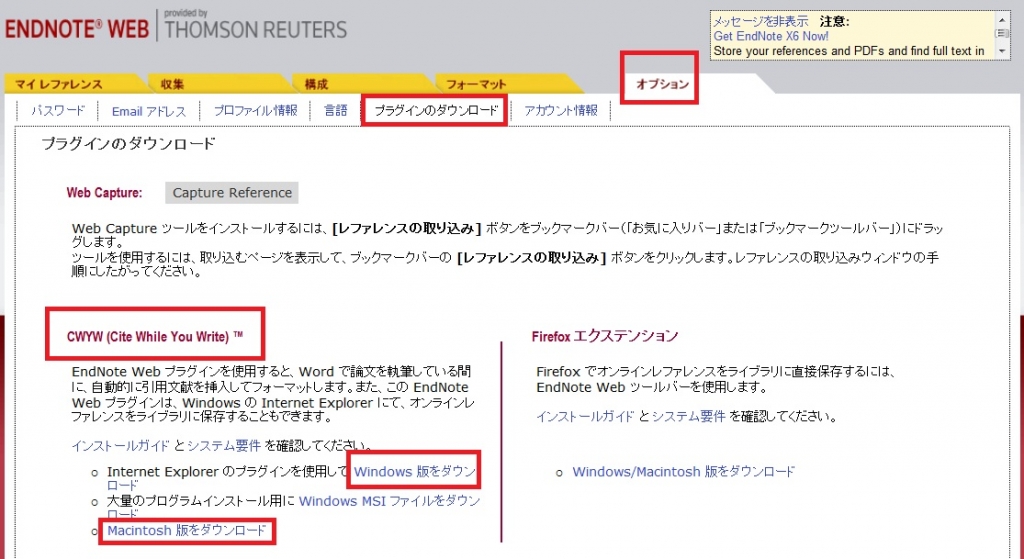
- If you are using Firefox as the browser
- Click "Download Windows/Macintosh Version" in Firefox Extensions to download the plugin.
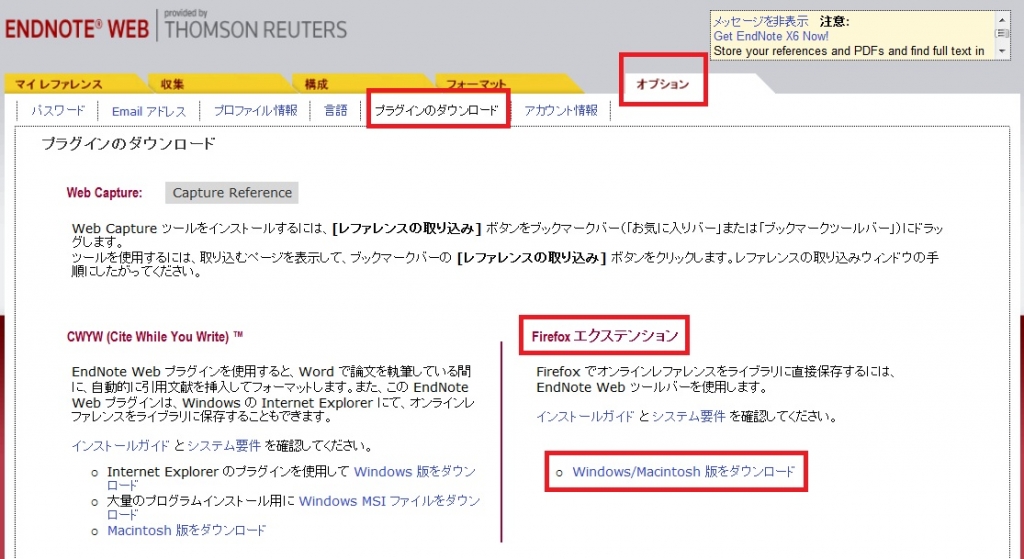
- When a message prompting you to restart Firefox appears, restart Firefox.
- From the Firefox menu, click [Tools] -> [Add-ons] -> [Extensions]. Then, click [Options] of EndNote Web.
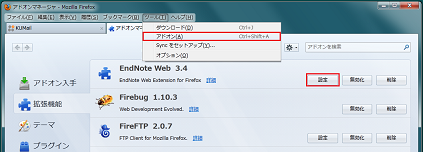
- Confirm that the pop-up check box is checked.
(If it is not, enter a check mark.)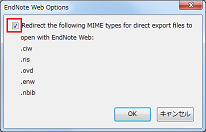
- If you are using Internet Explorer or Safari as the browser, select "Download Windows Version" or "Download Macintosh Version" from CWYW (Cite While You Write), according to the operating system used on your computer, to download the plugin.
- Click "Book Management" on the bibliography search result list screen or bibliography details screen.
(The bibliography to be imported must be selected on the bibliography search result list screen.) - When the "Select Export Destination" pop-up appears, select "EndNote Web."
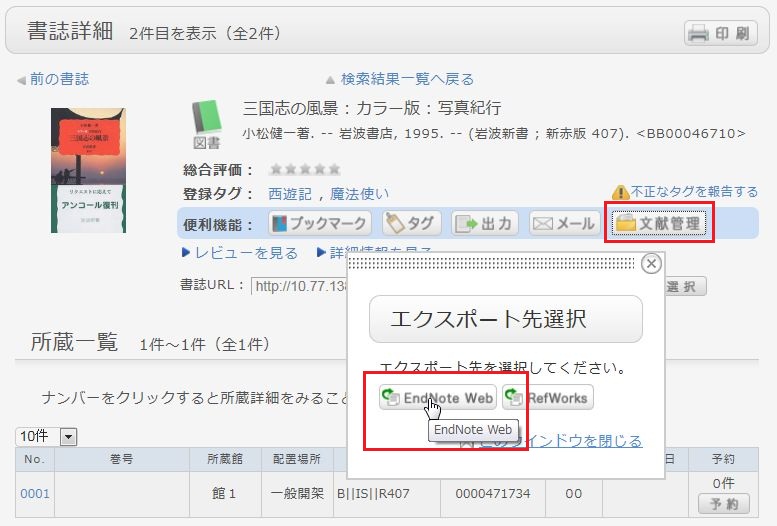
- The selected bibliography is imported to EndNote Web. (If you are not logged in to EndNote Web, a login screen appears. Log in by entering your e-mail address and password.)
- Log in to EndNote Web.
- Method without downloading a plugin
- Click "Output" on the bibliography search result list screen or bibliography details screen.
(The bibliography to be imported must be selected on the bibliography search result list screen.) - When the "Select the file output format" pop-up appears, select "RIS format."
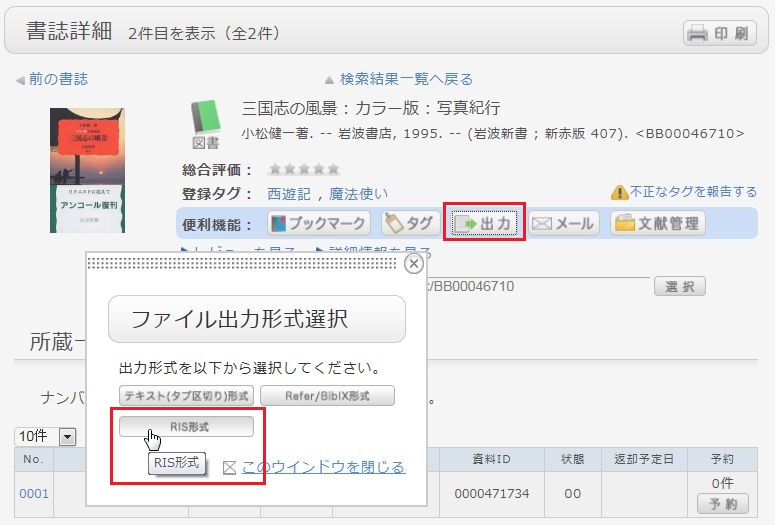
- The file is downloaded. Save the file at an appropriate location on your computer.
- Log in to EndNote Web.
* Users who do not have an account with EndNote are requested to register as users from "Account Registration." - Click [Collect] -> [Reference Point].
- Click the [Browse] button in "File," and select the newly saved file.
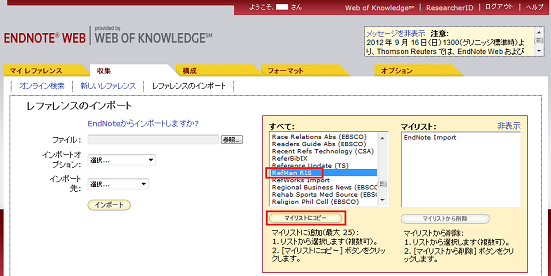
- Select "RefMan RIS" for "Import Options."
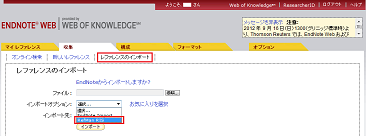
- Specify the import destination folder in "Import Destination," and click the [Import] button.
- The selected bibliography is imported to EndNote Web.
- Click "Output" on the bibliography search result list screen or bibliography details screen.
* If "RefMan RIS" does not appear in "Import Options," click "Select Favorites," select "RefMan RIS," and click [Copy to My List] to add the file to My List. 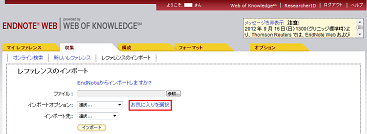
 Reference:
EndNote Web help - importing references
EndNote Web operating environment (supported browsers) (Usaco)
How do I import book information from OPAC to RefWorks?
- You can import book information from OPAC to RefWorks from the following screen.
- You can import book information directly (direct import) to RefWorks without downloading a plugin.
- Register as a new user only the first time.
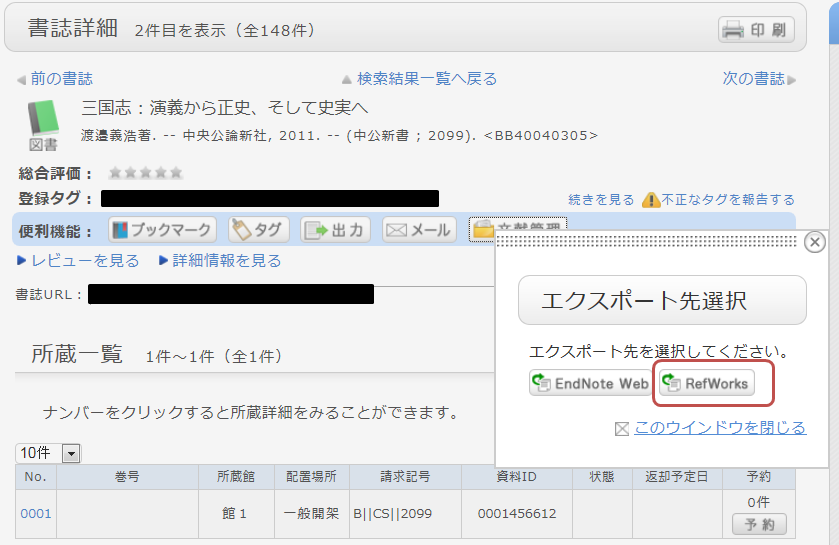
- Click "Book Management" on the bibliography search result list screen or bibliography details screen.
(The bibliography to be imported must be selected on the bibliography search result list screen.) - The "Select Export Destination" pop-up appears. Select "RefWorks."
- The selected bibliography is imported to RefWorks. (If you have not logged in yet, the login screen appears. In that case, enter your login name and password.)
Reference:
RefWorks (SUNMEDIA)